DRE2213 – Week 13 Project Demonstration – SULAM

Bringing Python, IoT, and Physical Computing Together =)..

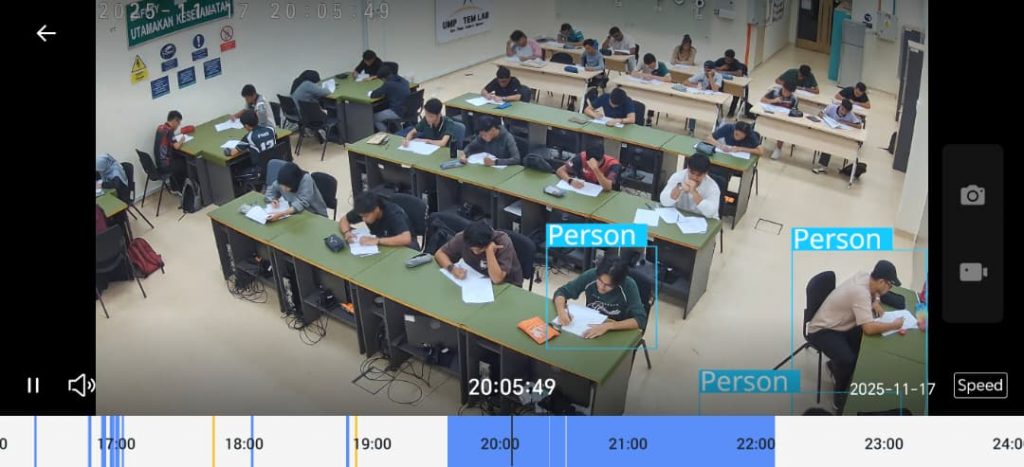
Today’s class marked an important milestone for DRE2213 – Programming and Data Structure, as students presented their final projects developed using Raspberry Pi and Python, with a strong focus on environmental sensing using the BME280 sensor. The SULAM session showcased not only technical competence, but also how far the students have progressed in applying programming concepts to real-world systems – in Perpustakaan UMPSA Pekan Monitoring System.

I am truly impressed by the level of achievement demonstrated by the students. Each group successfully implemented a complete IoT-based system, covering three essential components of modern embedded and data-driven applications.

1. Closed-Loop Sensor Integration

Students demonstrated their ability to build closed-loop systems by interfacing the BME280 temperature, humidity, and pressure sensor with the Raspberry Pi. Based on predefined threshold values, the system was able to trigger actuators such as LEDs and buzzers, reinforcing key concepts in sensor reading, decision-making logic, and control flow in Python.

2. Data Logging and Management

Another highlight was the diversity in data management approaches. Some groups opted for cloud-based databases such as Firebase, while others used Google Sheets or local storage solutions. This exposed students to different data structures, data persistence methods, and practical considerations in handling sensor data over time.

3. Dashboard Development and Visualization

Students also demonstrated creativity and flexibility in building dashboards to visualize sensor data. A wide range of tools were used, including:

  • HTML-based dashboards

  • Adafruit IO

  • Flask web applications

  • Streamlit dashboards

This variety reflects students’ growing confidence in selecting appropriate tools and frameworks to communicate data effectively.

From Games to Physical Systems – A Meaningful Learning Journey

At the beginning of this course, students were introduced to Python programming through a slider game developed using Pygame. This approach allowed them to grasp fundamental programming concepts—such as variables, loops, conditionals, and functions—within a digital and interactive environment.

As the course progressed, students transitioned from digital game development to physical computing projects, applying the same programming principles to real hardware and sensors. This combination of digital embodiment (game development) and physical embodiment (IoT systems) provided a strong foundation for understanding how software interacts with the real world.

Learning programming in an interactive and hands-on manner enables students to truly understand what their code is doing. Instead of writing abstract programs, they can see, hear, and measure the outcomes of their code—whether it is a game reacting to user input or a sensor triggering a buzzer based on environmental conditions.

Closing Reflections

Today’s presentations clearly demonstrated that interactive, project-based learning is an effective way to teach programming and data structures. By engaging with both digital and physical systems, students developed not only technical skills but also problem-solving confidence and design thinking.

Well done to all DRE2213 students on your excellent work. Your projects reflect strong effort, creativity, and meaningful learning. Keep building, keep experimenting, and keep pushing the boundaries of what you can create with Python and Raspberry Pi.


BTE1522 DRE2213 – Week 11 BME280 – Cloud and Local IoT Visualisation

This week, Week 11, we reached an important milestone in the IoT learning journey. Building upon the foundations established in Weeks 9 and 10, this week’s activity focused on visualising sensor data through dashboards, using two different approaches:

      1. A cloud-hosted dashboard using Adafruit IO

      2. A self-hosted dashboard using HTML served directly from the Raspberry Pi Pico W (LilEx3)

By the end of this session, you no longer just reading sensors — but you’ve design a complete IoT data pipelines, from sensing to networking to visualisation.

This week is we transit our attention from collecting data to presenting data.

Using the BME280 environmental sensor, you are able to work with:

        1. Temperature

        2. Humidity

        3. Atmospheric pressure

The same sensor data was then visualised using two different dashboard approaches, highlighting important design choices in IoT systems.

Approach 1: Cloud Dashboard Using Adafruit IO – Refer to Act 7 in TINTA and Google Classsroom 

This method introduces students to cloud-based IoT platforms, a common industry practice.

Key concepts:

        1. WiFi connectivity

        2. MQTT protocol

        3. Publishing data to a third-party server

        4. Remote access and visualisation

Code Explanation (Adafruit IO Method)

from machine import Pin, I2C
import network
import time
from umqtt.simple import MQTTClient
import bme280
      • Imports modules for hardware control, networking, MQTT communication, and the BME280 sensor.

i2c = I2C(1, sda=Pin(2), scl=Pin(3), freq=400000)
bme = bme280.BME280(i2c=i2c)
      • Initializes the I2C bus and the BME280 sensor.

wlan = network.WLAN(network.STA_IF)
wlan.active(True)
wlan.connect(wifi_ssid, wifi_password)
      • Connects the Pico W to a WiFi network.

mqtt_client = MQTTClient(
client_id=mqtt_client_id,
server=mqtt_host,
user=mqtt_username,
password=mqtt_password)
      • Configures the MQTT client for communication with Adafruit IO.

values = bme.values
temp = values[0]
mqtt_client.publish(temp_feed, temp)
      • Reads sensor values and publishes temperature data to the cloud dashboard.

This approach shows how sensor data can be accessed anywhere in the world, but depends on external services and internet connectivity.

Approach 2: Self-Hosted HTML Dashboard on Pico W

This method shifts learning toward edge computing and embedded web servers.

Key concepts:

        1. HTTP client–server model

        2. Serving HTML from a microcontroller

        3. JSON data exchange

        4. JavaScript-based live updates

        5. Local network dashboards


Code Explanation (HTML Dashboard Method)

import socket
      • Enables the Pico W to act as a web server.

html = """<html>...</html>"""
      • Stores the dashboard webpage directly in Python memory.

s = socket.socket()
s.bind(('0.0.0.0', 80))
s.listen(1)
      • Starts an HTTP server on port 80.

if "/data" in request:
      • Distinguishes between:

        • Page requests (/)

        • Data requests (/data)

values = bme.values
      • Reads temperature, humidity, and pressure in real time.

fetch('/data')
      • JavaScript on the webpage periodically requests new sensor data and updates the display without refreshing the page.

This approach emphasizes system integration, where the device itself becomes the dashboard — similar to ground stations and embedded monitoring panels.

Comparing Both Dashboard Approaches

Feature Adafruit IO HTML on Pico W
Hosting Cloud Local (device)
Internet required Yes Local WiFi only
Protocol MQTT HTTP
Complexity Lower Higher
Control Limited Full
Educational value Intro to IoT cloud Full-stack IoT

Both approaches are valuable, and understanding when to use each is an important engineering skill.

Bringing It All Together

By connecting:

    1. Weeks 9 & 10 (MPU6050 motion sensing & data logging)

    2. Week 11 (IoT dashboards and networking)

you are now capable of:

      1. Interfacing multiple sensors

      2. Logging and processing data

      3. Transmitting data over networks

      4. Designing dashboards (cloud and local)

      5. Building complete IoT systems

At this stage, you are no longer following isolated tutorials, but are now ready to design and execute their own IoT projects.

BTE1522 DRE2213 – Week 9 and 10 MPU6050

Dear DRE and BTE-ian,

notes on serial data communication |  notes on reading MPU6050 data.

This week, you’ve gone thru to one of the most exciting aspects of embedded systems and sensor-based computing: collecting, processing, and logging motion data using the MPU6050 sensor. Working with the LilEx3 – our in-house Raspberry Pi Pico–based picosatellite simulator, you explored how real satellites interpret motion, orientation, and attitude information through microcontrollers and built-in algorithms.

This activity was designed not only to strengthen understanding of Python programming on microcontrollers, but also to demonstrate how sensor data can be captured, logged, and interpreted, a fundamental skill in IoT, robotics, aerospace, and scientific computing.

1. Introducing the MPU6050 Sensor

The MPU6050 combines a 3-axis accelerometer and 3-axis gyroscope, allowing us to detect:

        1. Linear acceleration (AX, AY, AZ)

        2. Angular velocity (GX, GY, GZ)

        3. Motion patterns

        4. Orientation of a device in space

In satellite engineering, this type of sensor is crucial for:

        1. Attitude determination

        2. Stabilisation

        3. Orientation control

        4. Deployment sequence monitoring

For our LiLex3 picosatellite simulator, this data helps you to understand how satellites “sense” their position and respond to environmental changes.

2. Python Programming on the Raspberry Pi Pico

Acomplishing the task, you wrote MicroPython code to:

      1. Initialise the I2C communication bus

      2. Read real-time sensor values

      3. Display values on the Thonny console

      4. Log data into a .txt file for later analysis

This hands-on exercise strengthened key Python concepts:

  1. Variables & Data Types
    • You handled multiple numeric readings and stored them in variables such as ax, ay, az.
  2. Functions & Modular Code
    • They used functions like mpu.values() and learned how functions return multiple sensor readings at once.
  3. Loops
    • A continuous while True: loop was used to collect real-time data every second.
  4. File Handling
    • One of the most important skills today was learning how to open, write, and save data to a file—essential for logging experiments.
  5. Example snippet:
    • file = open("data.txt", "a")
      file.write(f"{count},{ax},{ay},{az},{gx},{gy},{gz}\n")
      file.flush()
    • This allowed the Pico to create a growing dataset, which you can later open in Excel for plotting or further analysis.
  6. Printing to Console
    • The real-time values were also displayed in the Thonny console, helping you can visualize live changes as they physically moved the LiLex3 module.

3. Experiencing Motion: Determining Roll, Pitch, and Yaw

Rather than reading just “raw numbers,” you were tasked to interpret meaning behind the MPU6050 readings.

Through controlled physical movement of the LiLex3:

        1. Pitch changed when tilting forward/backward

        2. Roll changed when tilting left/right

        3. Yaw changed when rotating horizontally (similar to turning a compass)

By observing accelerometer and gyroscope patterns, you began to understand how flight controllers, drones, and satellites estimate their orientation in space.

This experience reinforces why MPU data is vital in aerospace applications:

      1. CubeSat attitude determination

      2. Drone flight stabilization

      3. Rocket telemetry

      4. Robotics navigation

      5. VR/AR motion tracking

Then you were encouraged to mark down the sensor readings corresponding to specific movements and attempt simple calculations for roll/pitch/yaw using standard trigonometric formulas (e.g., atan2).

4. Data Logging: Building a Dataset for Analysis

One of the biggest takeaways was the importance of data logging.

By saving values into a .txt file, you learned how to:

        1. Record experimental data
        2. Align timestamps and readings
        3.  Import the file into Excel
        4. Plot sensor graphs (AX vs. time, pitch changes, etc.)
        5. Observe patterns corresponding to movement

This introduces to real scientific data workflows used in:

        1. Research experiments

        2. IoT sensor monitoring

        3. Engineering testing

        4. Satellite mission data collection

The logged dataset becomes the “flight log” for their miniature picosatellite simulator.

5. Conclusion: Why Today’s Activity Matters

Today’s class was not just about wiring a sensor and reading numbers. It was about understanding how real systems sense, interpret, and record the world around them.

You learned:

        1. Embedded Python programming

        2. Real-time sensor acquisition

        3. Data logging techniques

        4. Interpreting physical motion through numerical patterns

        5. Satellite-style orientation measurement

By the end of the session, every student had generated their own dataset and gained insight into how satellites determine roll, pitch, and yaw—all through hands-on experimentation with the LiLex3 and MPU6050.

This activity bridges classroom concepts with real aerospace and IoT engineering, preparing you for more advanced missions involving filtering (Kalman), attitude determination, and flight-control algorithms.


BTE1522 DRE2213 – Week 6 MicroPython Digital Input and Output

Dear DRE-BTE-ians,

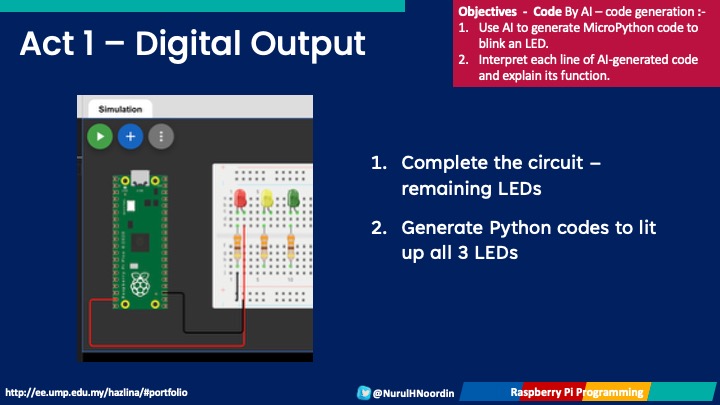
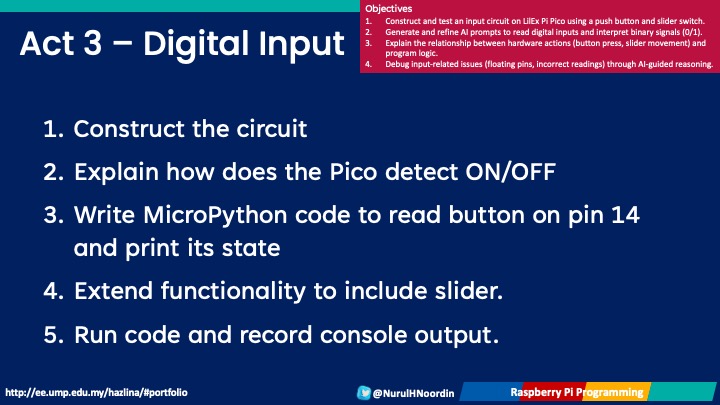
This week we move forward to explored how data structures and programming concepts come to life through the Raspberry Pi Pico. We completed Activity 1 (Digital Output), Activity 2 (Traffic Light), and Activity 3 (Digital Input), each introducing a new layer of understanding in Python programming and physical computing.

Activity 1 – Digital Output: Lighting Up with Variables

We began with the most fundamental task, turning an LED ON and OFF.
Through this, students learned:

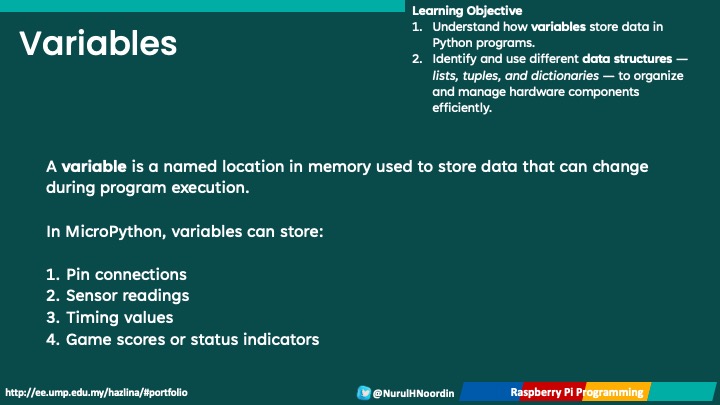
    1. How to define and use variables to store pin numbers and LED states

    2. How data types like integers and booleans control hardware behavior

    3. How to send output signals using the Pin() function and .on()/.off() commands

This activity established the foundation for understanding how code interacts with physical devices. Also, we make use of Wokwi online simulator, which is good especially in learning the basic concepts.

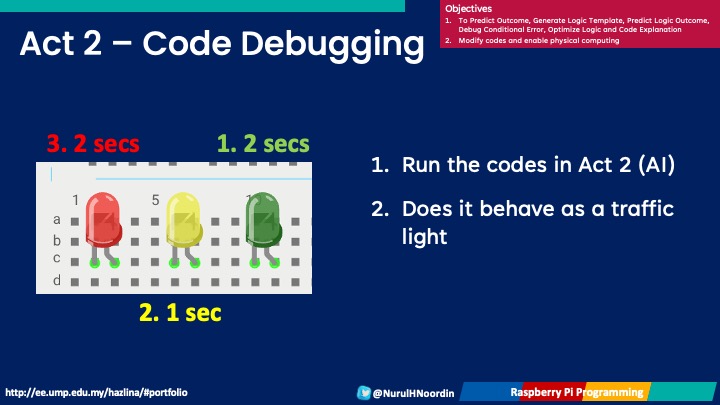
Activity 2 – Traffic Light Simulation: Learning Data Structures

Next, we built a traffic light simulation using three LEDs (Red, Yellow, Green).
Here, students experimented with different data structures to organize and control multiple outputs:

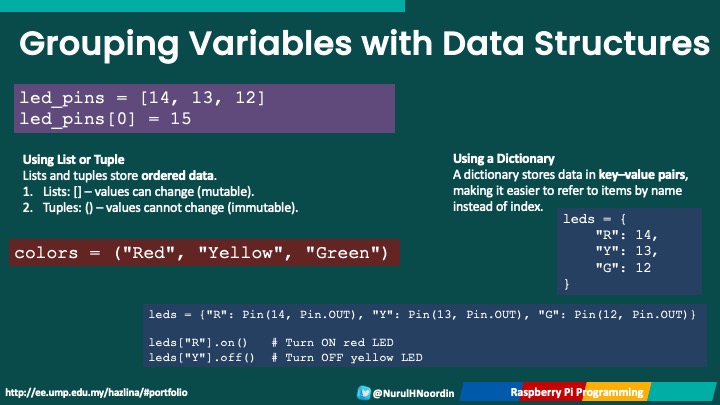
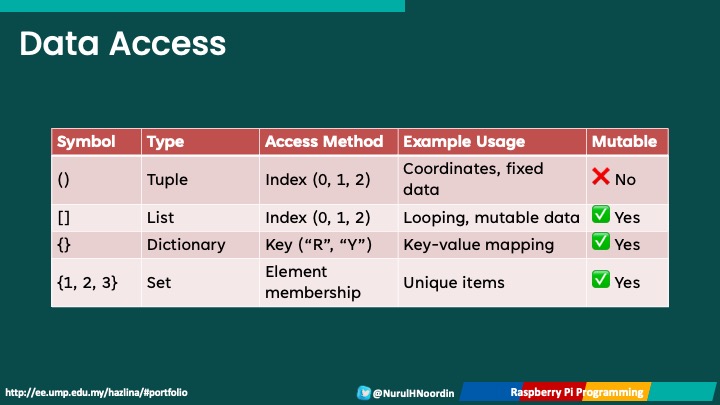
      1. Lists ([]) to store LED pins in a sequence

      2. Tuples (()) for fixed sets of pins

      3. Dictionaries ({}) to label LEDs for clarity ("R": 14, "Y": 13, "G": 12)

They also explored how to simplify code using loops and sleep statements to manage timing:

for led in leds:
led.on()
time.sleep(1)
led.off()

This hands-on activity demonstrated how data organization directly impacts code simplicity and readability.

Activity 3 – Digital Input: Reading from Buttons and Switches

The third activity introduced digital input, connecting push buttons and slider switches to the Raspberry Pi Pico.
Students learned to:

      1. Read input values (0 or 1)

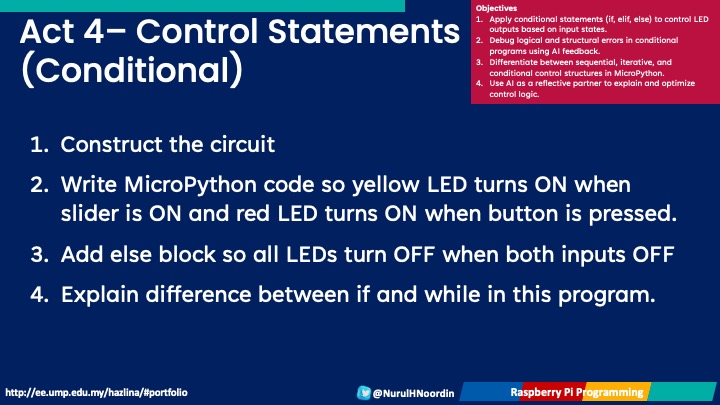
      2. Use conditional statements (if/else) to make the LED respond to user actions

      3. Understand Boolean logic and how it drives interactivity in real-world systems

This activity tied together input → process → output, emphasizing the logic flow that underpins all embedded systems.

Through these activities, you’ve not only focued on the essential coding techniques but also explored core data structures that make programs efficient and scalable. Understanding how lists, tuples, and dictionaries manage data sets the stage for more complex IoT and sensor-based applications in upcoming sessions.

Next week, we’re having Midterm Test =).

We’ll continue building upon these concepts as we move toward conditional programming and sensor integration, after the midterm break. Great work everyone — keep experimenting, debugging, and learning by doing!

BTE1522 DRE2213 – Week 5 Group Work Slider Game Modifications

Well done everyone!

This week is a milestone for our BTE/DRE class as every group proudly presented their Slider Game project progress. It was inspiring and proud to see how each team creatively modified and improved their game based on the previous week’s work.

From new features to refined gameplay mechanics, the modifications were innovative, functional, and well-executed — truly showcasing your growing confidence in Python programming. Well done, everyone!

Embodiment of the Slider Game in Learning Programming Concepts

The Slider Game has served as more than just a fun project — it’s a powerful learning embodiment of key Python programming concepts. As you troubleshoot, refine, and enhance your code, you’re reinforcing the very foundation of computational thinking.

Here’s how the game connects to core programming elements:

      • Variables – Used to store and update game data such as player position, speed, and score.

      • Libraries – Imported Python modules that expand functionality (for example, pygame for game design).

      • Boolean Functions – Used to determine logical game conditions such as collisions, game over, or win states.

      • Mathematical Functions – Handle calculations for movement, boundaries, and scoring mechanisms.

      • def Functions – Help organize your code into reusable blocks, making your program easier to manage.

      • Control Statementsfor loops, if–else conditions, and input controls bring interactivity and flow to your game logic.

      • Limiting Factors – Define the movement boundaries and maintain balance in gameplay, preventing unintended behavior.

By understanding and applying these concepts, you’re not just building a game, you’re mastering the structure and logic of programming through hands-on experience.

Submission Requirements

To complete this stage of your assignment, please ensure the following are submitted:

    1. Python Code

      • Submit your final Python code with clear comments explaining all modifications made to the original version.

    2. Report

      • Include a report that consists of:

        1. A README file with instructions on how to play your game.

        2. An overview of your modifications and their impact on gameplay

        3. (Optional) Flowcharts or pseudocode illustrating your game logic.

    3. 3-Minute Video

      • Record a short 3-minute demo video showcasing your game.

      • Explain the gameplay, code modifications, and the rationale behind your changes.

      • Upload the video to YouTube and share the link in your submission.

The progress you’ve shown so far demonstrates a strong grasp of Python programming, logical reasoning, and creative thinking. Each group has successfully transformed theory into an interactive digital experience, a reflection of project-based learning.

Keep up the excellent work, and don’t forget to complete your submissions on time.


Next week, we’ll continue to refine our understanding as we move toward hardware integration and sensor-based projects — bringing your code to life beyond the screen!

BTE1522 DRE2213 – Week 4 AI Assisted Learning

Dear BTE & DRE-ians,

First of all, congratulations on completing Step 7 of your Slider Game project! You’ve successfully created your own Python game — an achievement that shows how far you’ve come in learning to code.

Now, let’s take a step forward into an exciting new experience — learning to code with AI.

In this session, we explored how Artificial Intelligence can support us as a learning partner — not to code for us, but to help us think, debug, and create better. Throughout today’s activity, we focused on four different roles of AI in programming.

1. AI for Flowchart Generation and Code Understanding

We began by revisiting the completed Step 7 of the Slider Game. Using GPT-based tools, students explored how to comprehend the logic behind their Python code and then derive a flowchart from it.

Flowcharting is a crucial part of computational thinking — it helps us visualize abstract logic and understand the sequence of decisions and actions within our program. By having AI explain the code flow, students learned how to map their code into structured diagrams that represent real-world logic.

2. AI for Troubleshooting and Debugging

Next, students explored how AI can assist in debugging. In Step 7, we noticed two common issues:

      • The score counter was upcounting continuously.

      • The collision detection was adding multiple scores at once.

By prompting AI for guidance, students learned how to correct the logic — ensuring the game counts down properly and increases the score by only one per collision.

This activity demonstrated how AI can serve as a learning buddy, guiding students to identify, understand, and fix programming errors while reinforcing their knowledge of conditional statements, loops, and Boolean flags.

3. AI for Code Generation and Modification

In the third task, students practiced AI-assisted code generation. They were challenged to modify their existing Slider Game without changing its core gameplay mechanics.

By using AI to suggest new features — such as different movement behaviors, boundary limits, or score displays — students learned how to prompt effectively, evaluate the AI-generated code, and integrate improvements meaningfully.

This step emphasized creativity with control — learning how to enhance existing code while maintaining logical integrity.

4. Coding for AI and with AI

The key takeaway from today’s activity is to encourage you to learn to code with AI, not just getting codes by AI.

While AI can generate code, meaningful learning happens when students engage with the logic — understanding why and how it works. AI becomes a partner in exploration, enabling students to think critically, problem-solve, and apply what they learn to real-world challenges.

Today’s session introduced a new dimension of programming — blending Python logic with AI literacy. Students discovered that AI isn’t just a shortcut; it’s a tool for concept reinforcement, debugging, and idea expansion.

As we move forward, remember: the goal isn’t just to write code — it’s to understand it, modify it, and make it better. And with AI as your learning partner, that journey becomes even more exciting.

See you all next week =)


BTE1522 DRE2213 – Week 4 Assignments

Hi BTE-ian & DRE-ian,

Before proceed with your assignment, please make sure to complete the following:-

        1. flowchart of your project – Step 7 (together with required troubleshooting in Week 3 – count down timer and scoring system)
        2. upload in TINTA Ch 5

Below is the assignment – modification:-

This week, students from the BTE 1522 and DRE 2213 courses are given assignment that are designed to develop their programming skills in Python. Each group of three students is tasked with choosing one of the 20 game modification options available and implementing it as a team project. This assignment is all about creativity, problem-solving, and teamwork as students work to modify an existing Python game and showcase their programming concepts.

In this assignment, each group will:

  1. Select a Game Modification
    1. Out of 20 different modification options, each group chooses one that they’ll use to enhance a basic game written in Python.
    2. Modifications can range from adding new features, changing game mechanics, enhancing visuals, to incorporating user-friendly elements.
  2. Implement the Code Changes
    1. Using Python, students will modify the codebase to create the enhancement they selected. As they work through these changes, they’ll encounter new programming concepts, which they can build upon for future projects.
    2. This assignment offers students a chance to solidify their coding skills while adding their creative touch.
  3. Submit the Project Components

Each group will submit:

    1. The modified Python code, clearly commented to explain the changes made.
    2. A written report detailing the modifications, gameplay instructions, and the coding process.
    3. A 3-minute video demonstrating the game, explaining the code changes, and showcasing the impact of the modifications.

Reporting

To complete this assignment, please:

  1. Review the Game’s Base Code
    1. Understand the game’s original code before making any changes.
    2. Each student in the group should be familiar with how the code works to effectively contribute to the modification.
  2. Plan the Modification
    1. After selecting a modification, map out the changes needed.
    2. This could include adding new variables, adjusting functions, or integrating additional modules. Using flowcharts or pseudocode can be especially helpful to visualize how the new feature will work within the existing game structure.
  3. Divide and Conquer
    1. With three members in each group, teamwork will be key!
    2. Students should divide tasks based on each member’s strengths and collaborate to implement the modification efficiently.
  4. Test the Changes
    1. Test the game thoroughly to ensure that the new feature or modification works as intended and doesn’t disrupt existing functionality.
    2. Debugging is an important skill in programming, so encountering and fixing errors will be a valuable part of this process.

Upload these in KALAM (https://kalam.ump.edu.my/)

Showcase and Reflect

As part of the final submission, you are encouraged to be creative with their 3-minute video, which should highlight –

  1. Gameplay
    • Show the modification in action and explain how it enhances the game.
  2. Code Explanation
    • Walk viewers through the code changes made, highlighting key additions and adjustments.
  3. Reflection
    • Share insights into the challenges and learning experiences encountered during the project.

Good luck to all the groups, and I look forward to seeing your creativity come to life in your games!


DRE2213/BTE1522 – Week 3 – Python Programming – Game Completion

Hi DRE-ian and BTE-ian.

Well done, this week we have completed Step 7 of the Slider Game Project. With this final step, the game is now fully functional — a reflection of the coding concepts and logical thinking you’ve developed over the past 3 weeks.

Recap – From Step 1 to Step 7

Throughout the development of the Slider Game, you have applied multiple core Python programming fundamentals, including:

      1. Variables – for storing and updating game data such as player score and positions.

      2. Libraries – importing and using external Python modules to enhance functionality.

      3. Boolean Functions – determining game conditions like collisions or winning states.

      4. Mathematical Functions – calculating movement, limits, and speed.

      5. def Functions – structuring reusable code blocks to organize game logic.

      6. Control Statements – using for loops, if–else conditions, and input controls for smooth gameplay.

      7. Limiting Factors – defining boundaries to restrict player movements and maintain proper game flow.

These coding elements come together to form a dynamic and interactive Python game , a fun yet powerful way to learn how logical thinking and programming intersect.

Task Reminders

Before we move on, please make sure to complete the following:

      1. Submit your .py file and a snapshot of your game result on TINTA.

      2. Complete Quizzes 1, 2, 3, and 4 to reinforce your understanding of the Python concepts used.

Looking Ahead to Week 4

In Week 4, we’ll move into the next phase of our project — analyzing and modifying the Slider Game code. We’ll explore how small changes can create new gameplay dynamics, add scoring logic, and enhance interactivity.

Get ready to debug, modify, and take your Python game development skills to the next level!